Guide
Import and export Wake-on-LAN profiles
Use Import / Export when you want to back up your saved devices or move them to another phone.
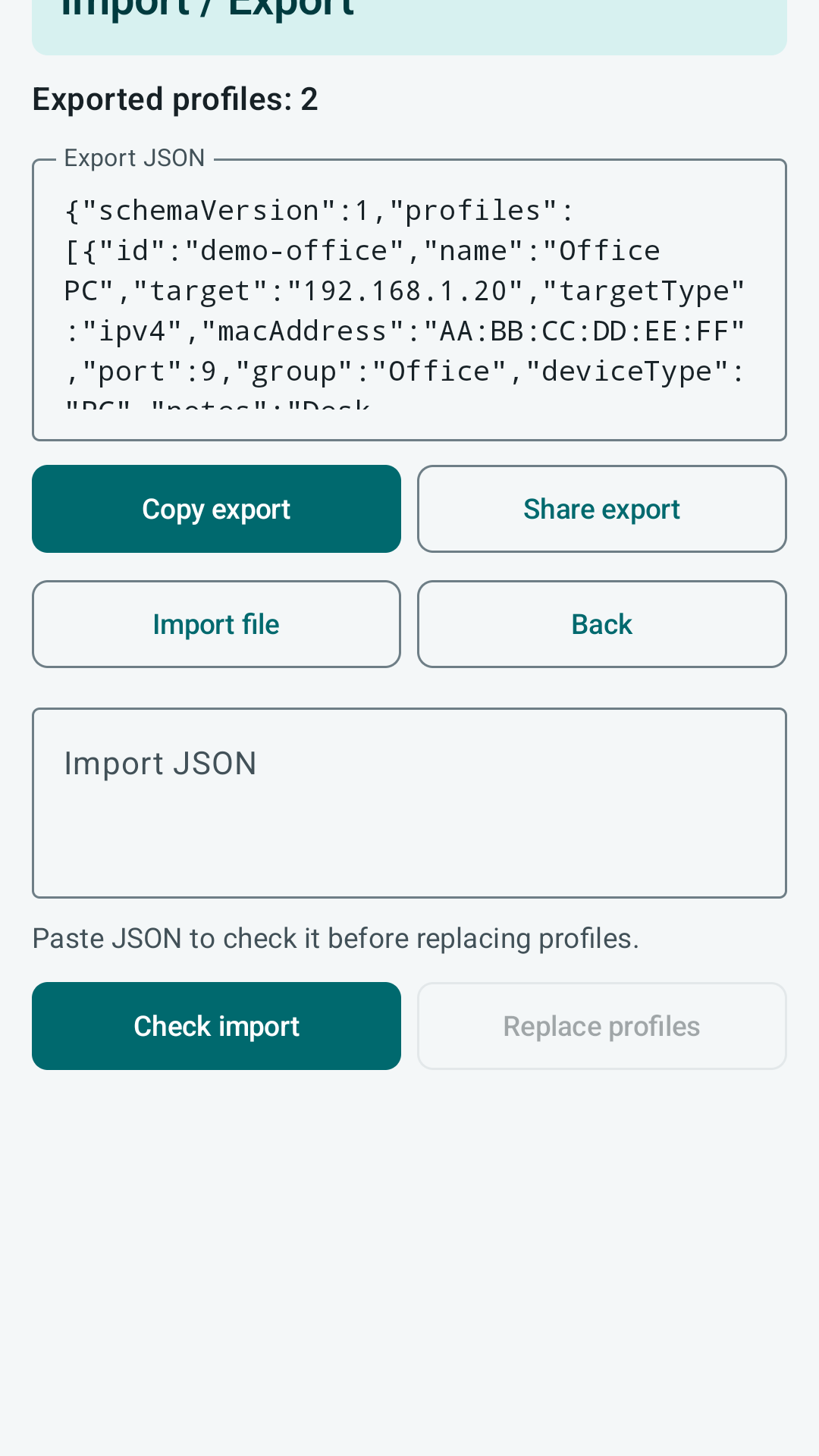
The simple version
Export means “make a backup copy.†Import means “bring a backup copy into this phone.†PacketWake does not do this automatically because your device list can contain private network details.
Always use Check import before Replace profiles. Check import is the safe preview step.
What the export contains
The export is versioned JSON. It includes the profile fields needed to rebuild your saved Wake-on-LAN targets, including device name, optional group, target, port, MAC address, SecureOn value when configured, retry settings, notes, and pinned state.
A profile can include network names, MAC addresses, local hostnames, and notes. Share an export only with someone who should have those details.
Export profiles
- Open Settings.
- Choose Import / Export.
- Use Copy export if you want to paste the backup into your own note or file.
- Use Share export if you want to send the backup through the phone share sheet.
- Save the backup somewhere you control.
Import profiles safely
- Paste the JSON into the import field.
- Run Check import before replacing anything.
- Review the number of profiles and any validation errors.
- Use Replace profiles only when the preflight looks right.
What Replace profiles means
Replace profiles means the imported list becomes the list on this phone. It is useful when moving to a new device, but it is not the right button if you are unsure what is inside the backup.
You bought a new phone and want the same saved computers on it.
You received a JSON file from someone else. Read it first because it may contain their network details.
Good backup habits
- Keep a dated copy before editing many devices.
- Check one imported profile before relying on a full migration.
- Remove stale SecureOn values or notes before sharing an export with another person.
- Do not paste JSON from an unknown source unless you are comfortable replacing your current local profiles.
When import fails
Import checks reject malformed JSON, unsupported export versions, missing required fields, invalid MAC addresses, invalid ports, invalid retry values, and duplicate identifiers that cannot be resolved safely.
Plain examples of import errors
- “Invalid MAC address†means the hardware address is missing characters or has characters that do not belong there.
- “Invalid port†means the port is empty, too low, too high, or not a number.
- “Unsupported version†means the file is not a PacketWake export version this app understands.