Guide
Quick wake controls
Quick wake controls help you wake a known device faster after you have already tested that profile inside PacketWake.
The simple version
Quick wake is a shortcut, not magic. It uses the profiles you saved in the app. Test the profile from the app first, then use quick controls when you are confident it works.
Each Android widget wakes one selected device. Add more widgets if you want one-tap wake buttons for more machines.
PacketWake does not wake devices by itself in the background. A quick control still means you asked the app to send a wake packet.
Pin the right profile first
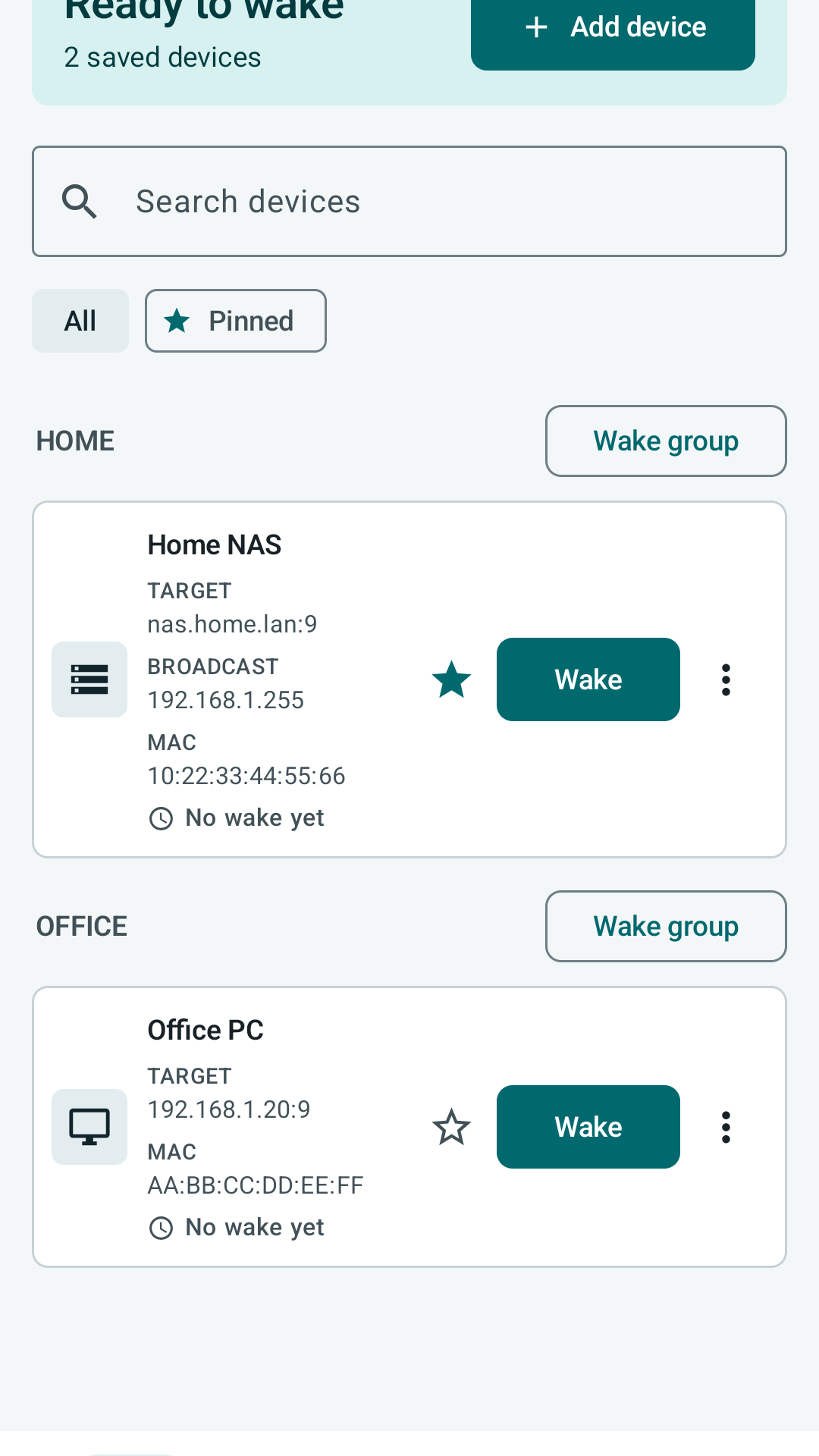
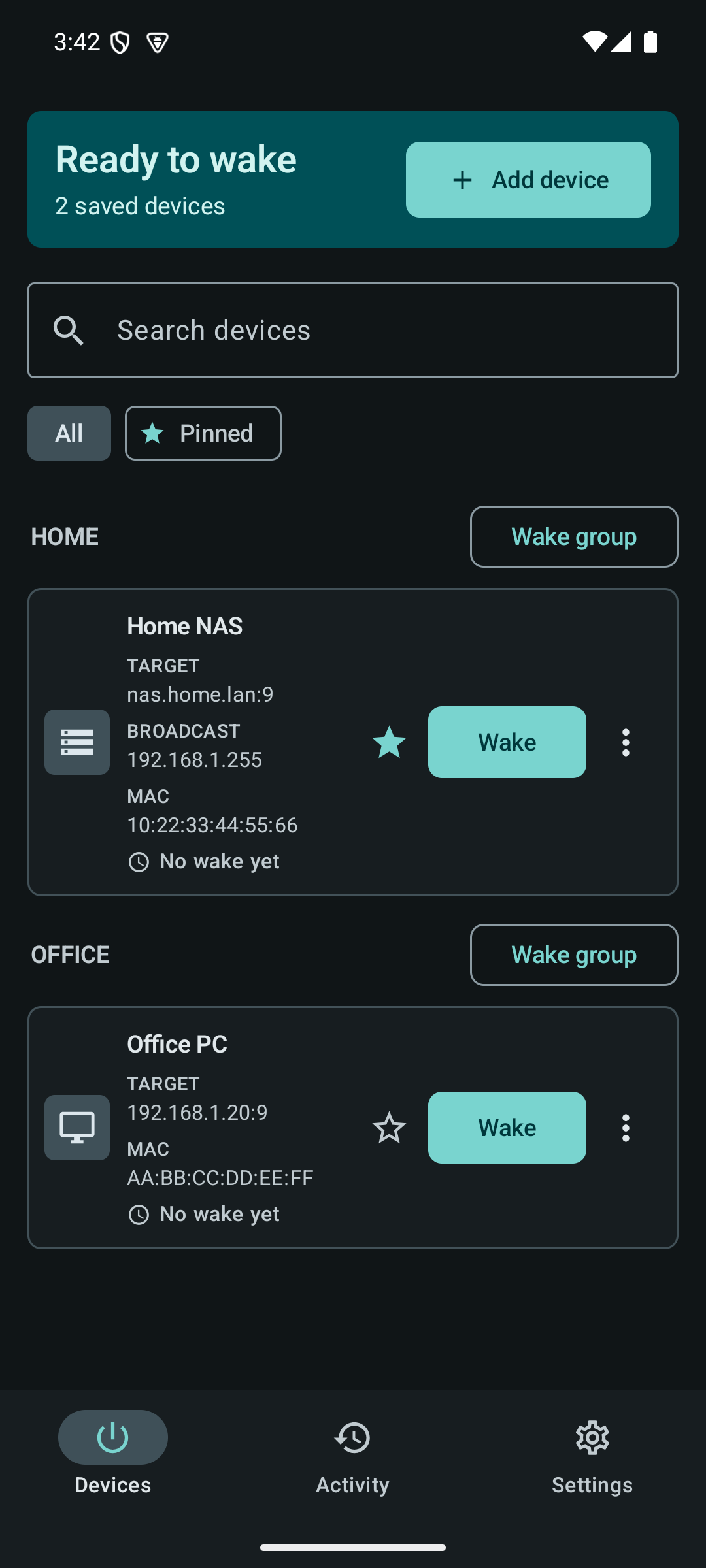
Use the pinned option on profiles you wake often. Pinned profiles appear in the dashboard filter and are the safest candidates for quick wake surfaces.
If you only wake one computer, pin that computer. If you wake several devices, pin the one you expect the Quick Settings tile to use.
Use group wake deliberately
Group wake sends wake packets for the profiles in that group. Use it for known sets like Home, Office, or Lab. Leave Group blank when a device does not belong to a group; ungrouped devices stay separate from named groups.
Use group wake only when it is normal for all devices in that group to receive a wake packet together.
Android widget
The Android widget is for fast access to one configured wake target. When you add the widget, PacketWake asks which saved device that widget should wake.
If you want a widget for a Mac and another widget for a PC, add the widget twice and choose a different saved profile each time. A widget remembers the profile chosen for that widget. If you delete that profile later, remove and add the widget again.
Android Quick Settings tile
The Quick Settings tile is designed for an intentional wake action from the system shade. It does not ask each time. If more than one profile exists, it uses the pinned profile first, otherwise the first saved profile by name.
PacketWake does not run a background monitor and does not repeatedly ping devices to guess status. Quick wake controls send a user-requested Wake-on-LAN packet.
Before relying on quick wake
- Test the profile from inside the app first.
- Check that the MAC address belongs to the adapter that remains powered in sleep.
- Use a broadcast override only when your network requires it.
- Keep retries bounded so one shortcut does not become noisy network traffic.
Best everyday setup
Pin it, test it from the app, then use the widget or tile for daily wake actions.
Add one widget per machine for one-tap control, or use groups only when waking all devices together is truly what you want.